


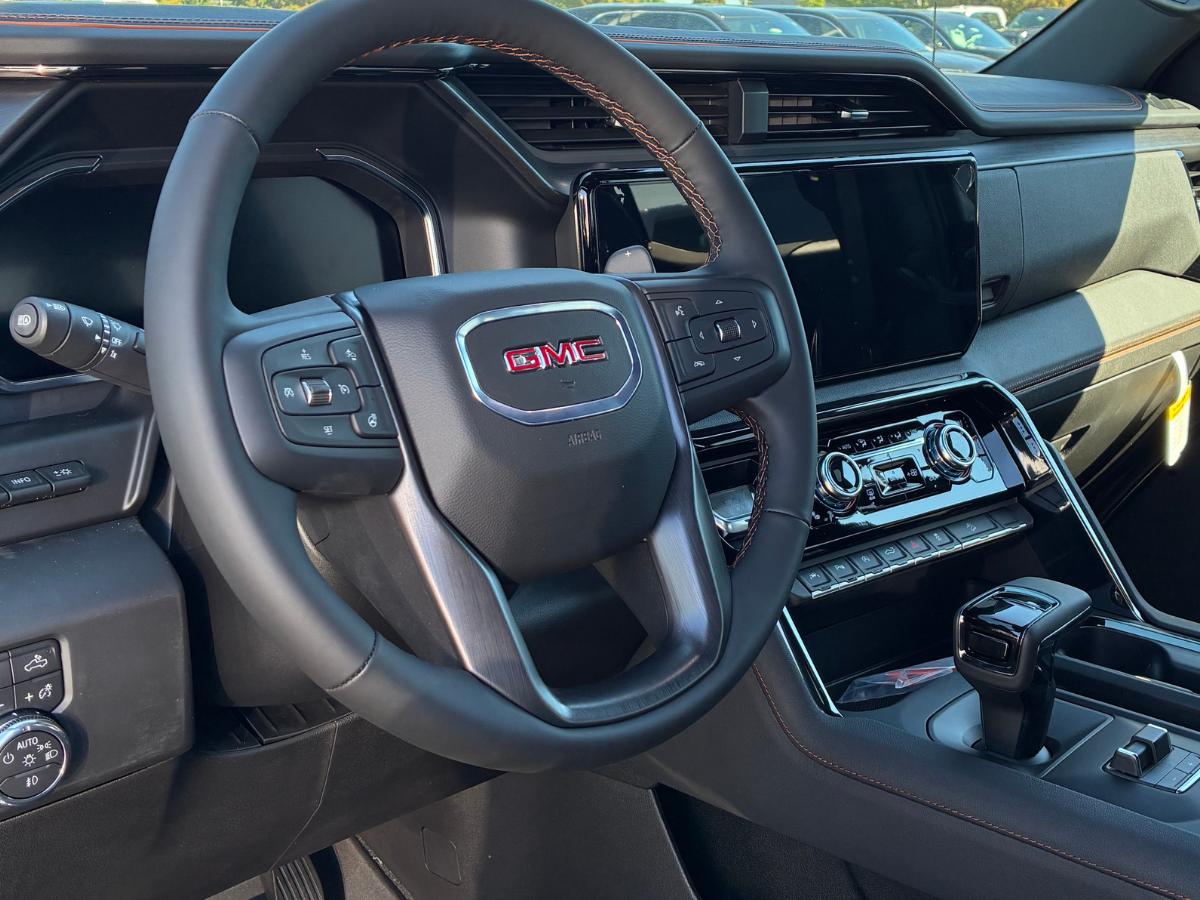
Drivers in Springdale and Northwest Arkansas count on their vehicles to keep up with busy schedules, work commutes, school drop-offs, and weekend trips across the region. GMC’s available Google Built-In system makes that easier by placing Google Assistant, Google Maps, and Google Play directly into the infotainment screen. No cables, no phone connection, and no extra steps.
If you’re bringing home a new GMC from Crain Buick GMC of Springdale, or you want to learn how to get the most out of the tech in your current vehicle, this setup guide walks you through each step.
Step 1: Sign In to Your Google Account
Your GMC will prompt you to sign in the first time you start the vehicle. Logging in creates a personalized system that recognizes your preferences.
How to sign in:
• Tap the profile icon on the infotainment screen
• Choose “Sign in with Google”
• Enter your email and password
• Confirm which settings and data you want to sync
Signing in is optional but recommended. It brings your saved destinations, playlists, and preferences directly into the vehicle.
Step 2: Set Up Google Assistant
Google Assistant helps you stay hands-free while navigating busy NWA routes like Sunset Avenue, Highway 265, or I-49. It responds to voice commands for navigation, communication, climate control, and entertainment.
To set up Google Assistant:
• Say “Hey Google” when prompted
• Allow the system to use your microphone
• Select your preferred voice settings
• Review common commands
Once activated, try simple requests like:
• “Hey Google, get directions to Crain Buick GMC of Springdale.”
• “Hey Google, send a message to my dad.”
• “Hey Google, play my favorite playlist.”
Step 3: Personalize Your Driving Experience
After your account is connected, your GMC will guide you through several customization options so the system feels natural from the start.
Drivers often personalize:
• Display layout
• Favorite apps
• Saved locations (home, work, school routes)
• Climate preferences
• Multiple driver profiles
• Towing or trailering settings on Sierra or Yukon models
These personalized features work alongside GMC Pro Safety Plus features, helping you stay confident in traffic, on steep NWA hills, and during longer drives.
Step 4: Connect to Wi-Fi or OnStar for Full Features
Google Built-In uses a data connection to deliver real-time info and keep apps updated.
You can connect your GMC using:
• The built-in Wi-Fi Hotspot
• Your home Wi-Fi
• A phone hotspot
Some connected features require an OnStar plan, but most Google functions work once you’re signed in.
This type of connected setup also plays a major role in GMC’s expanding EV lineup, where Google Built-In supports charging navigation, travel planning, and driver personalization.
Step 5: Download Your Favorite Apps Through Google Play
With Google Play built directly into the infotainment system, you can download media, audio, and driving-related apps right from the screen.
Popular choices include:
• Spotify
• YouTube Music
• Audible
• Podcast apps
• Weather and news tools
Your apps update automatically as long as your vehicle has a data connection.
Step 6: Put Google Maps to Work on NWA Roads
Google Maps is one of the most appreciated Google Built-In features among drivers in Springdale, Fayetteville, and Rogers. It gives accurate routing during heavy traffic, construction zones, and busy areas like Pinnacle Hills.
Google Maps includes:
• Live traffic and delay updates
• Rerouting based on accidents or closures
• Lane guidance
• Voice-activated directions
• Local business search
• Fuel, restaurant, and EV charging suggestions
If you tow boats, trailers, or equipment, pairing Google Maps with one of GMC’s best trucks for towing helps create smoother, safer routes across Northwest Arkansas.
Which GMC Models Offer Google Built-In?
Google Built-In is available or standard on models like:
• GMC Yukon & Yukon XL
• GMC Sierra 1500
• GMC Sierra Heavy Duty
• GMC Acadia (new generation)
• GMC Terrain (availability varies by trim)
Many drivers researching trim differences take time to explore the newest GMC Terrain features to see how its interior tech blends with Google Built-In.
Those comparing the redesigned Acadia also often look into its updated drive modes, which pair well with real-time navigation.
Why Northwest Arkansas Drivers Enjoy Google Built-In
Drivers from Springdale to Bentonville appreciate technology that simplifies their day without adding complexity. Google Built-In fits that need with easy menus and familiar tools.
Benefits for NWA drivers include:
• Hands-free voice commands
• Accurate navigation through busy highway areas
• Better towing route insight
• Intuitive controls that feel familiar
• Smooth integration with Google apps
Many shoppers who enjoy these features also explore available Super Cruise technology for a different type of hands-free experience during long highway stretches.
TL;DR: Quick Summary
• Sign into Google for a personalized experience
• Google Assistant handles voice commands
• Wi-Fi or OnStar unlocks full connectivity
• Google Play provides apps and entertainment
• Google Maps offers real-time routing across NWA
• Available on Sierra, Acadia, Yukon, and more
Explore Google Built-In at Crain Buick GMC of Springdale
If you want to see how Google Built-In works in person, our team is here to help. Drivers from Springdale, Fayetteville, Rogers, Bentonville, and surrounding NWA communities visit us to explore the system firsthand.
You can:
• Test voice commands using Google Assistant
• Explore Maps navigation and towing-friendly routing
• Try apps through the Google Play Store
• Compare Google Built-In features on multiple GMC models
If you’re interested in more affordable options, several used GMC models offer helpful infotainment technology that works great for everyday driving.
Shoppers comparing brands often check out how Google Built-In works inside Buick SUVs as well, since Buick offers its own comfort-focused version of the system.
FAQ: GMC Google Built-In
Does Google Built-In require OnStar?
Some features may require a plan, but the core Google tools work once activated.
Q: Do I need a Google account?
A: A Google account helps sync your apps, addresses, and preferences.
Q: Can multiple drivers use the system?
A: Yes, each driver can sign in with their own Google profile.
Q: Do apps update on their own?
A: Yes, Google Play updates your apps automatically.
Q: Is Google Assistant hands-free?
A: Yes. Just say “Hey Google” to get started.
Connect with us


Recent Blog Entries
- 2026 Buick Envista vs Chevy Trax in Springdale, AR
- 2026 GMC Acadia vs. 2026 Honda Pilot in Springdale, AR
- 2026 GMC Terrain vs 2026 Nissan Rogue in Springdale, AR
- Buick Envision vs Lexus NX: Which Luxury SUV Fits Springdale Drivers Best?
- Top Fuel-Efficient Buick & GMC SUVs for Springdale Drivers in 2026